



Auto-Redirect creates a redirect for you whenever a new domain or subdomain starts pointing to RedirHub. You choose the redirect mode, destination URL and redirect type once. After that, every new domain that points to your workspace is redirected automatically. Existing redirects are never changed.
Who can use it#
Auto-Redirect is included in all Enterprise plans. On the Pro plan, it comes with the Dedicated Cluster add-on.
Auto-Redirect is designed to work with a workspace’s name servers. When a domain’s name servers are set to the pair shown in the workspace settings, RedirHub creates the domain’s redirect after it receives the first HTTP request for that domain.
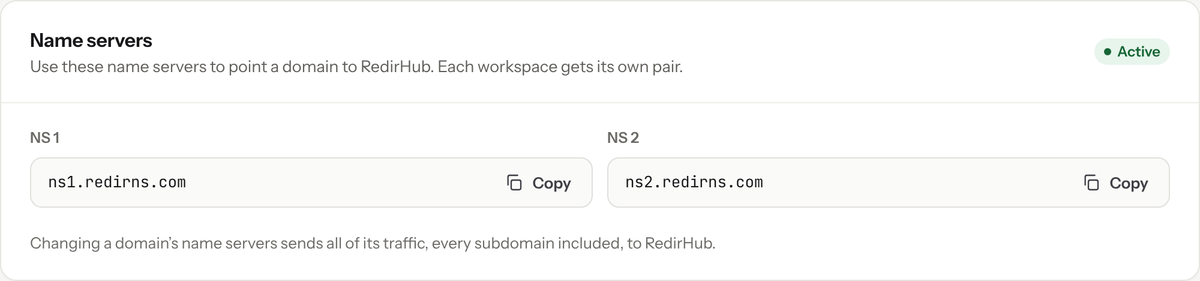
Your workspace’s name servers. Each workspace has its own pair.
How to use it#
Turn on Auto-Redirect#
- In the RedirHub dashboard, open your workspace settings and go to Network Security.
- Under Auto-Redirect, choose a redirect mode. Root domain only is recommended.
- Enter the Destination URL where new domains should go. It is required while Auto-Redirect is on, and can use variables, described below.
- Pick the redirect type: 301 (the default), 302, 307 or 308.
- Select Save.
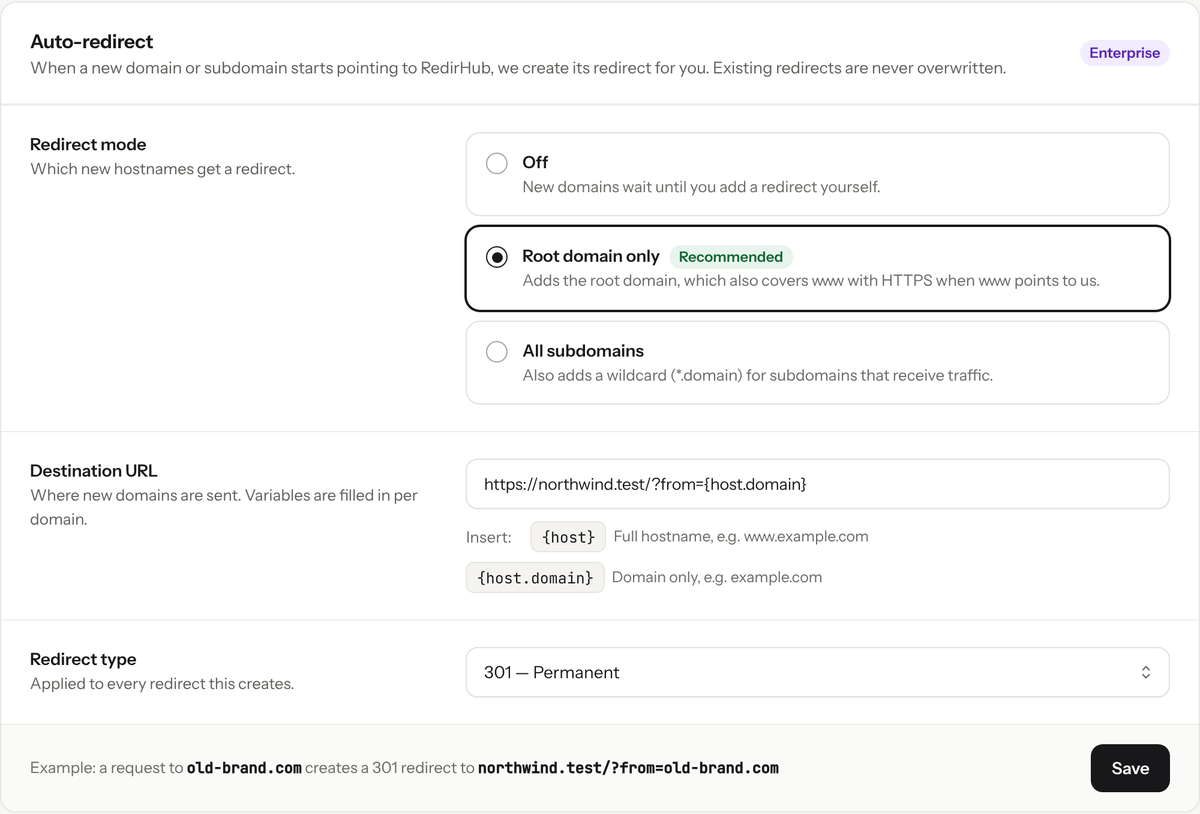
Auto-Redirect with Root domain only, sending every new domain to one site.
Redirect modes#
- Off: no redirect rule is created automatically. This is the default.
- Root domain only (recommended): only the root domain, such as example.com, gets a redirect. It also covers www.example.com, with HTTPS, when www points to RedirHub too.
- All subdomains: also adds a wildcard redirect, such as *.example.com, when subdomains of a domain receive traffic.
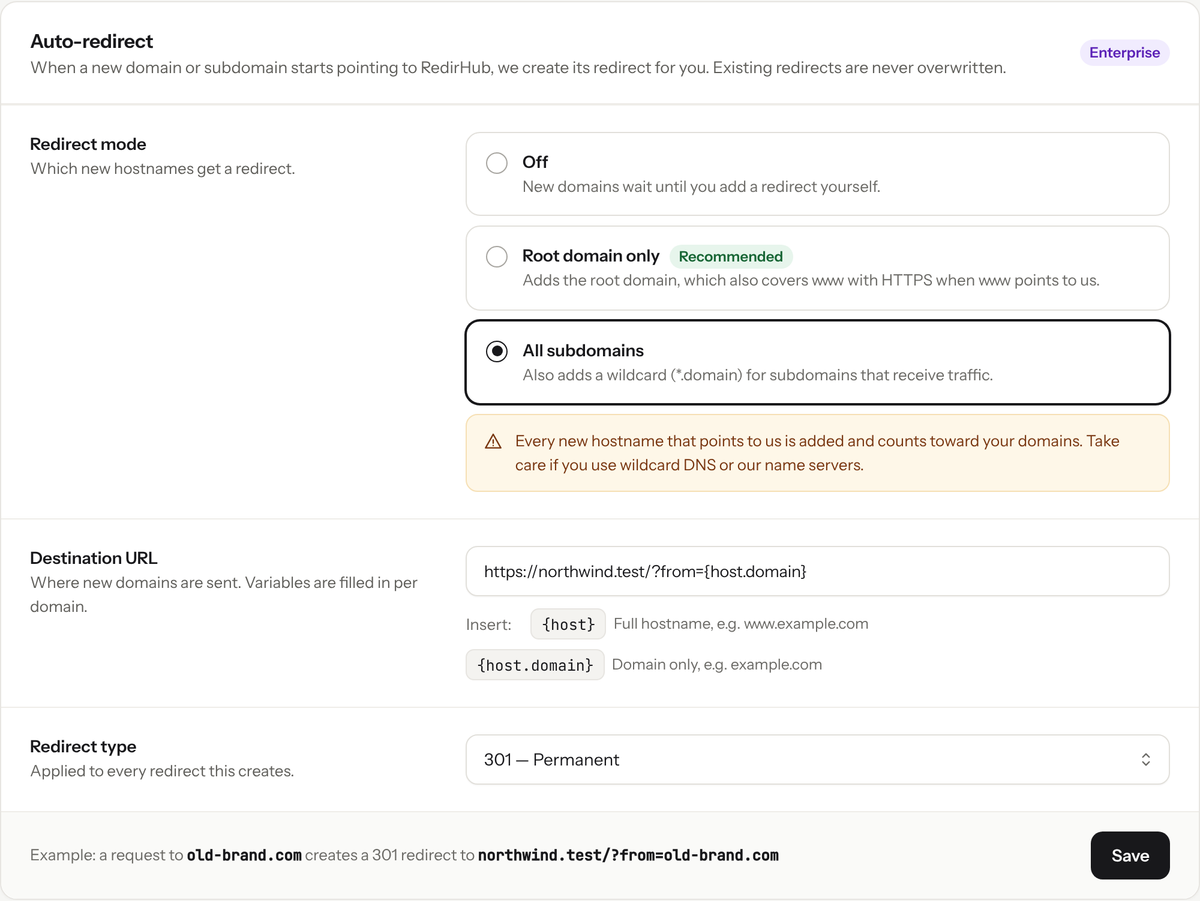
All subdomains adds a wildcard redirect for each domain.
Every new hostname that points to RedirHub is added and counts toward your plan’s domains. Take care with All subdomains if you use wildcard DNS or RedirHub name servers, where any hostname can reach RedirHub.
Include the source domain in the destination URL#
The destination URL can include {host} (the full hostname, for example www.example.com) and {host.domain} (the domain only, for example example.com). With https://northwind.com/?from={host.domain}, a visit to old-brand.com is redirected to https://northwind.com/?from=old-brand.com.
See Destination URL Variables for more examples.
What happens behind the scenes#
- RedirHub’s edge servers report each request for a hostname that has no redirect yet.
- RedirHub then checks each hostname over HTTPS and continues only if it is served by the RedirHub network and not already held by another workspace.
- For each new hostname, RedirHub adds the domain to the workspace, requests an HTTPS certificate, creates the redirect and pushes it to the edge servers.
- Existing redirects are never overwritten.
- New redirects don’t forward the path or query string. You can change that, or anything else, by editing the redirect like any other.
Don’t see the setting?#
On plans without Auto-Redirect, the section is shown but locked. Auto-Redirect is included in all Enterprise plans. On the Pro plan, add the Dedicated Cluster add-on to turn it on.
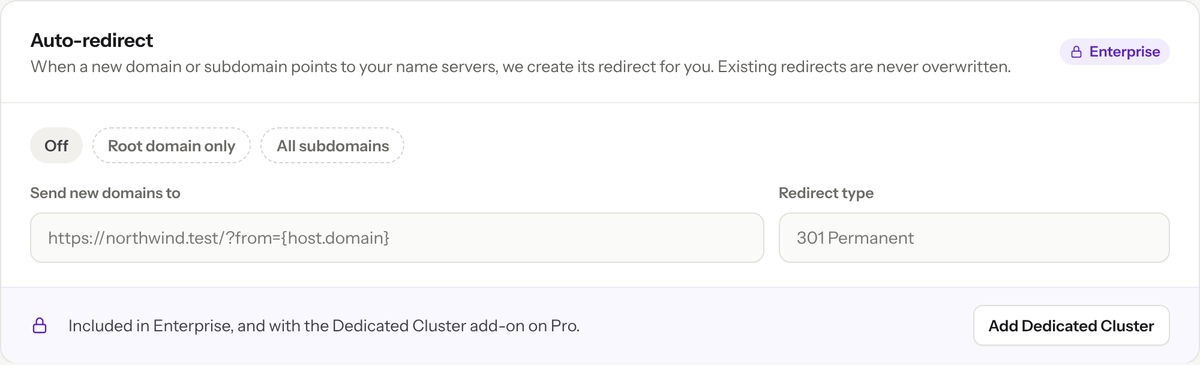
On the Pro plan without the Dedicated Cluster add-on, Auto-Redirect is locked.