



October 19, 2026
RedirHub is now in Claude and ChatGPT
You can now find RedirHub in the app directories of Claude and ChatGPT. Search for RedirHub, connect it, and ask your assistant to set up redirects, short links and QR codes for you.
Where to find it#
- Claude: Settings → Connectors, search for RedirHub, or open the RedirHub connector.
- ChatGPT: Settings → Apps, search for RedirHub, or open the RedirHub app.
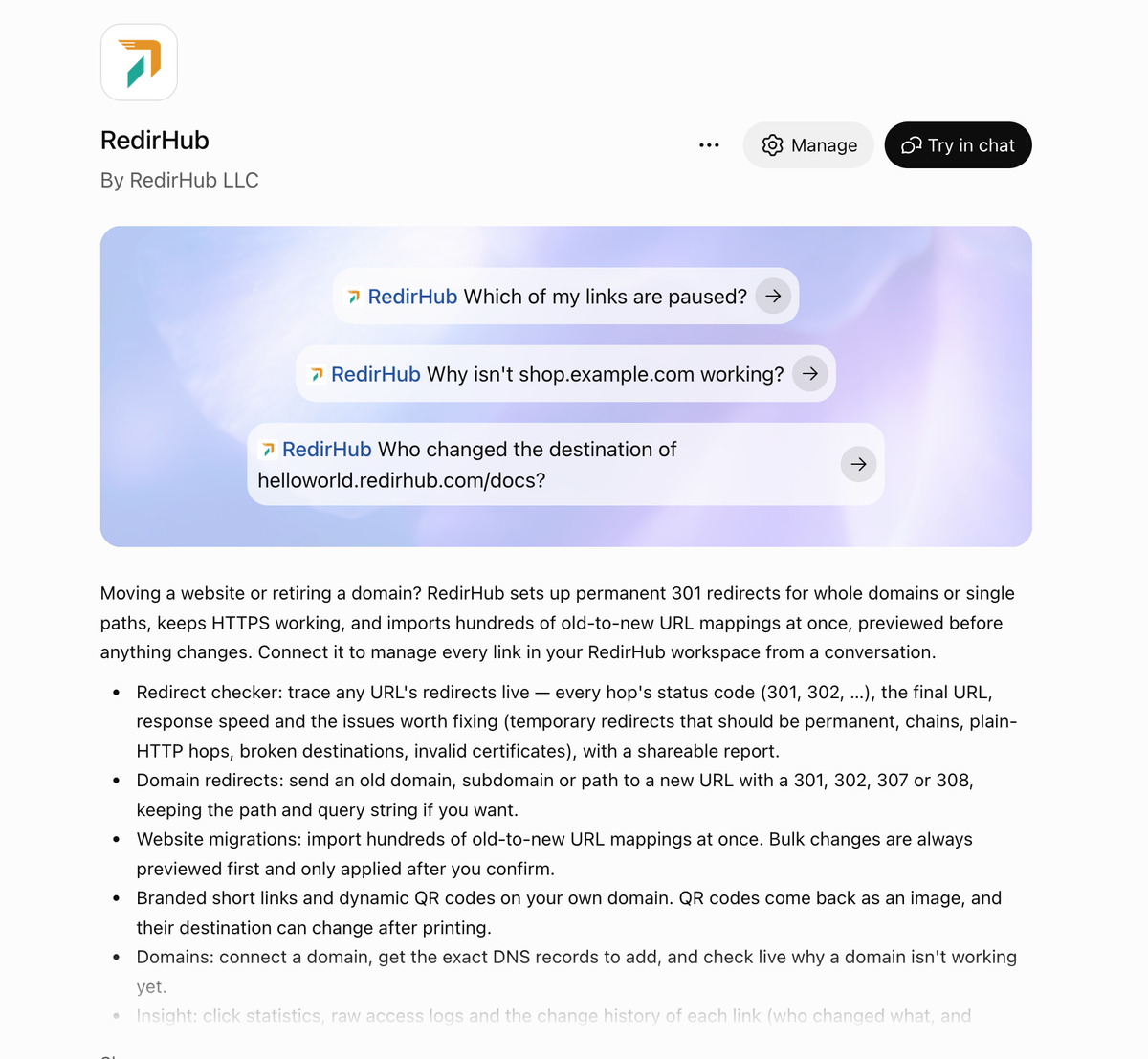
RedirHub in the ChatGPT app directory
Sign in, no token to copy#
Your assistant opens RedirHub: sign in, pick the workspace it works in and choose what it may do — read only, create and edit links, delete links, manage domains, or manage the workspace. You can disconnect it at any time under Account → AI assistants.
A shorter address#
The MCP server's address is now https://mcp.redirhub.com. In Cursor, Codex and other apps that aren't listed yet, add it as a custom connector or remote MCP server with that address. The earlier address keeps working, so existing connections don't need to change.
Every plan can connect. Setup for each app is on the MCP page.
October 16, 2026
Trace a redirect and fix it from your AI assistant
The RedirHub MCP server has a new tool, trace-redirect-chain. Ask your assistant to check a URL or short link: it follows the redirect, times it and tells you what is wrong. If a hop is one of your links, it can change it right away.
What changed#
- Trace and time a redirect: every hop with its status, the final page, the first-byte time and issues such as temporary redirects, plain-HTTP hops, long chains or broken destinations. Measure from Washington D.C., Frankfurt or Tokyo, or compare two URLs. Each trace comes with a public report page.
- Bulk changes by tag: for example, pause every link tagged spring.
- Paused from the start: redirects, branded links and QR codes can be created paused.
- Pick links by id: statistics and access logs accept a link id, and you can compare up to 10 links at once.
- Clear errors, not empty answers: a link or domain that does not exist now comes back as an error that suggests the one you probably meant, instead of reporting zero visits.
October 16, 2026
Test how fast any redirect really is
Paste any redirect or short link into the redirect speed test and see how fast it answers, where it ends up and what to fix. It is a free tool.
What you get#
- A verdict and a rank: Fast, Average or Slow, and how your redirect compares with the redirects tested in the last 7 days.
- Every hop: the status and destination of each step, with a what-to-fix list for temporary redirects, plain-HTTP hops, long chains, broken destinations and invalid certificates.
- Three regions: measure from Washington D.C., Frankfurt or Tokyo, or see all three averaged.
- Side by side: add a second URL to compare two redirects.
- A page you can share: every test has its own address and share image, so you can send the result to a colleague or a client.
October 12, 2026
New account settings: security, API token expiry and ownership transfer
Account settings have a new look and a settings search (⌘K), and the dashboard has a new sidebar. Light, dark and system themes are supported everywhere.
Security#
- A new Security page with a password strength meter and breach check, three-step two-factor setup, Google sign-in, and your active sessions with the option to log out all other sessions.
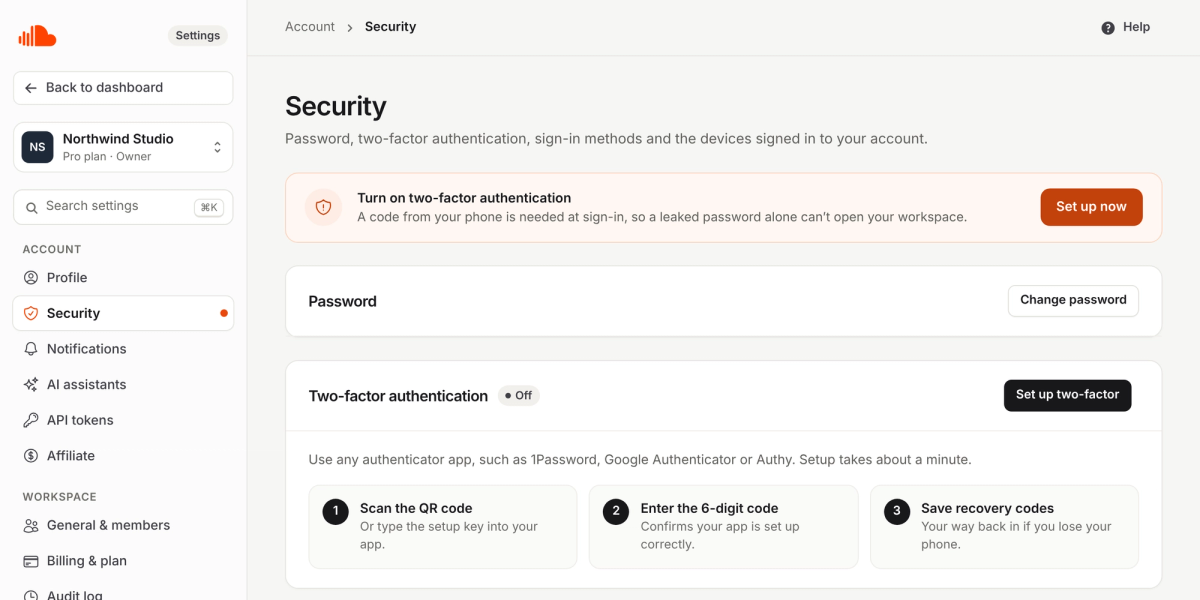
Settings → Security
API tokens#
- Choose an expiry from 30 days to never, and get an email a week before a token expires. Tokens show a masked ending so you can tell them apart.
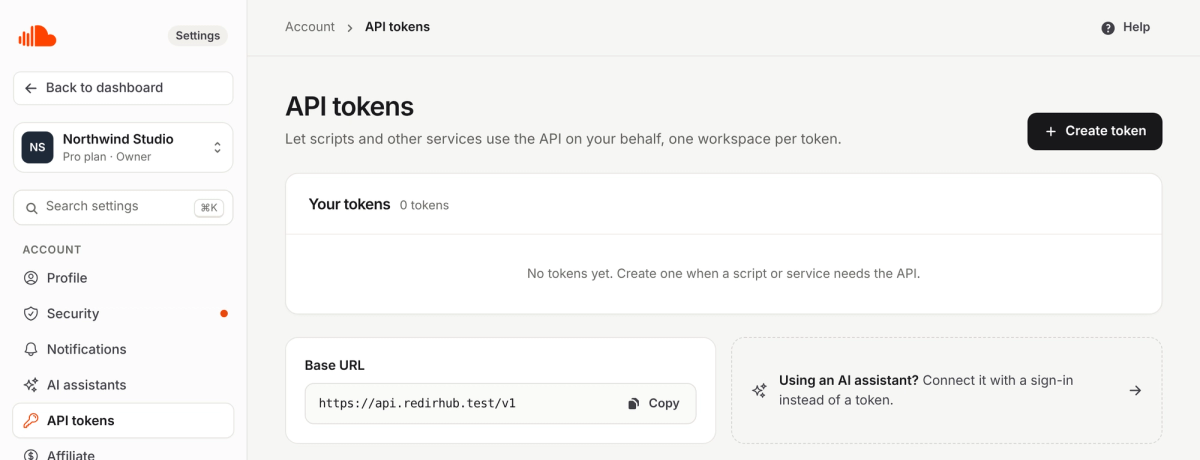
Settings → API tokens
Members and billing#
- Invite several people at once, resend or revoke invitations, change roles in the table and transfer ownership of a workspace.
- Add your company name, VAT ID and address so they appear on receipts, and download your full billing history as CSV.
- Audit log: revert a single change to a link. Enterprise workspaces can upload their own SSL certificate.
October 10, 2026
Analytics is now your home page, with filters you can share
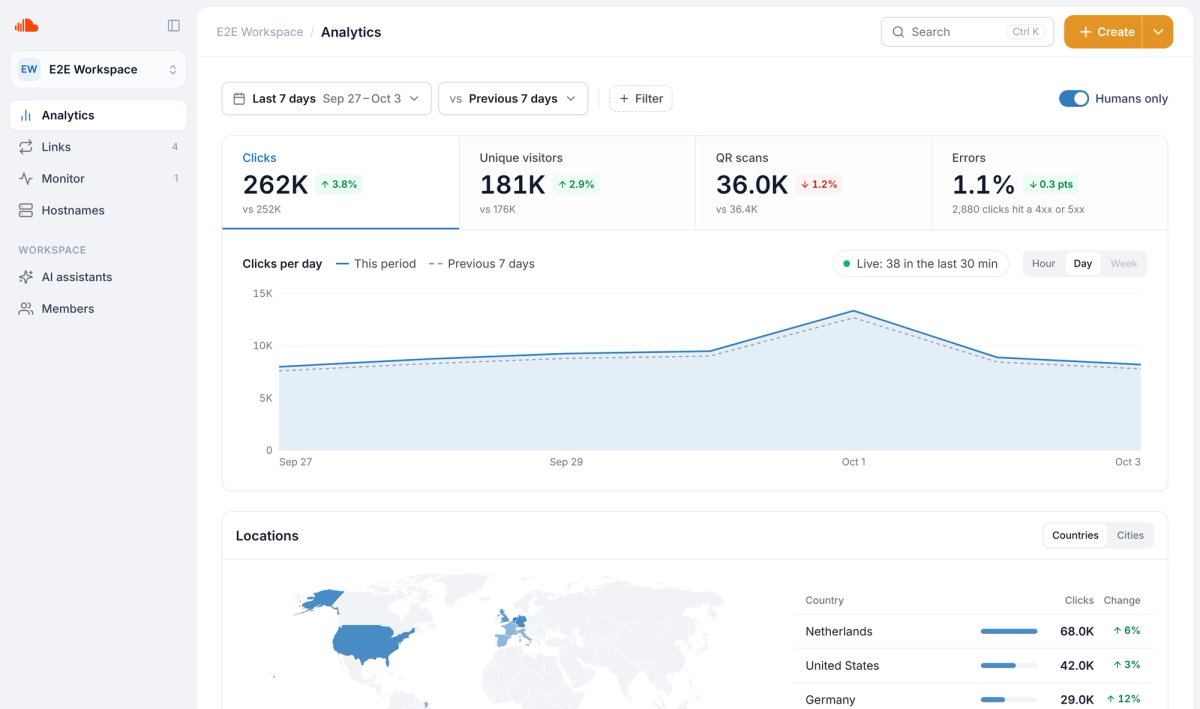
Analytics: filters, comparison and cards on one page
Analytics is now the first thing you see. Pick a date range, compare it with the previous period or the same period last year, and filter by country, link, domain, tag, referrer, device or response. Everything you set lives in the page address, so you can bookmark a view or send it to a colleague.
What you get#
- Four headline numbers. Clicks, unique visitors, QR scans and errors, each charted against its own previous period.
- Six cards. A map of where clicks come from, your top, rising and falling links, sources, domains and tags, technology, and redirect status codes.
- Click to filter. Click any row, country or device and the whole page follows. View details opens the full list with search and a CSV download.
- Status codes on every plan. See which redirects return 4xx or 5xx errors, and filter by response code.
- Clear about gaps. Where data does not go back far enough, the page says so instead of showing zeros.
October 5, 2026
Connect DNS: automatic setup with Cloudflare
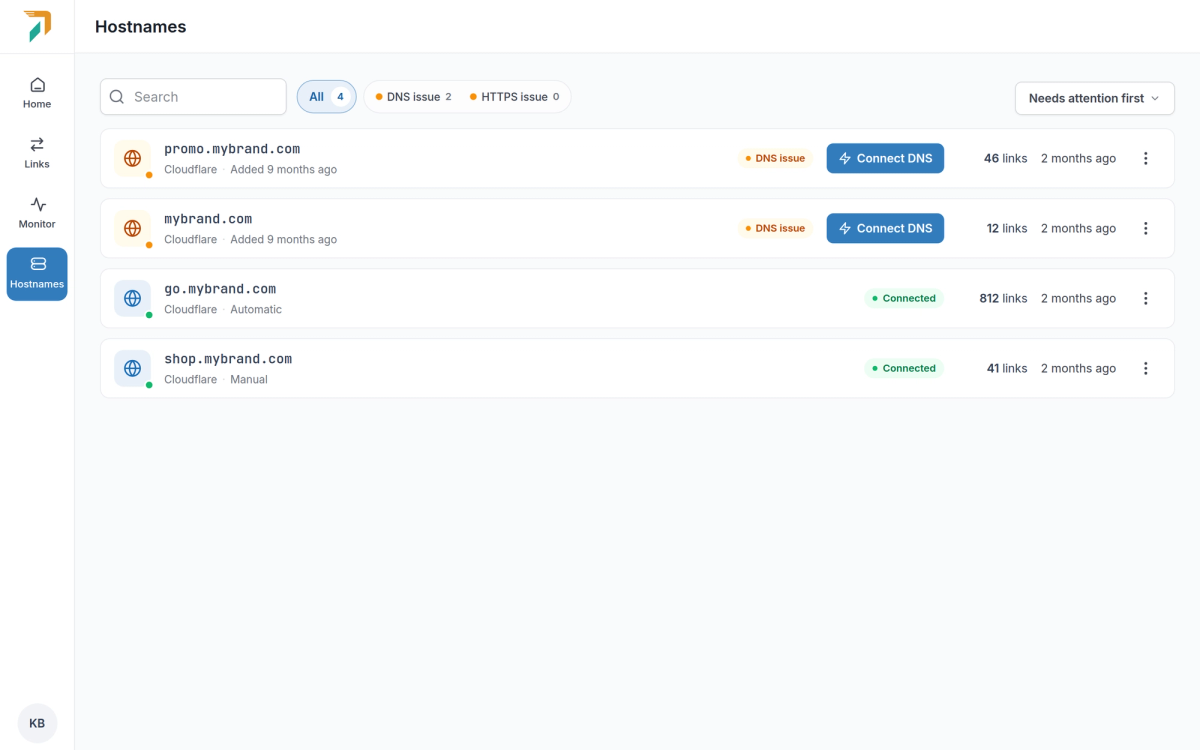
Hostnames → Connect DNS
Every hostname that doesn’t point to RedirHub yet now has a Connect DNS button. It opens one window that shows where your DNS is hosted, what is missing and the quickest way to fix it.
Automatic setup with Cloudflare#
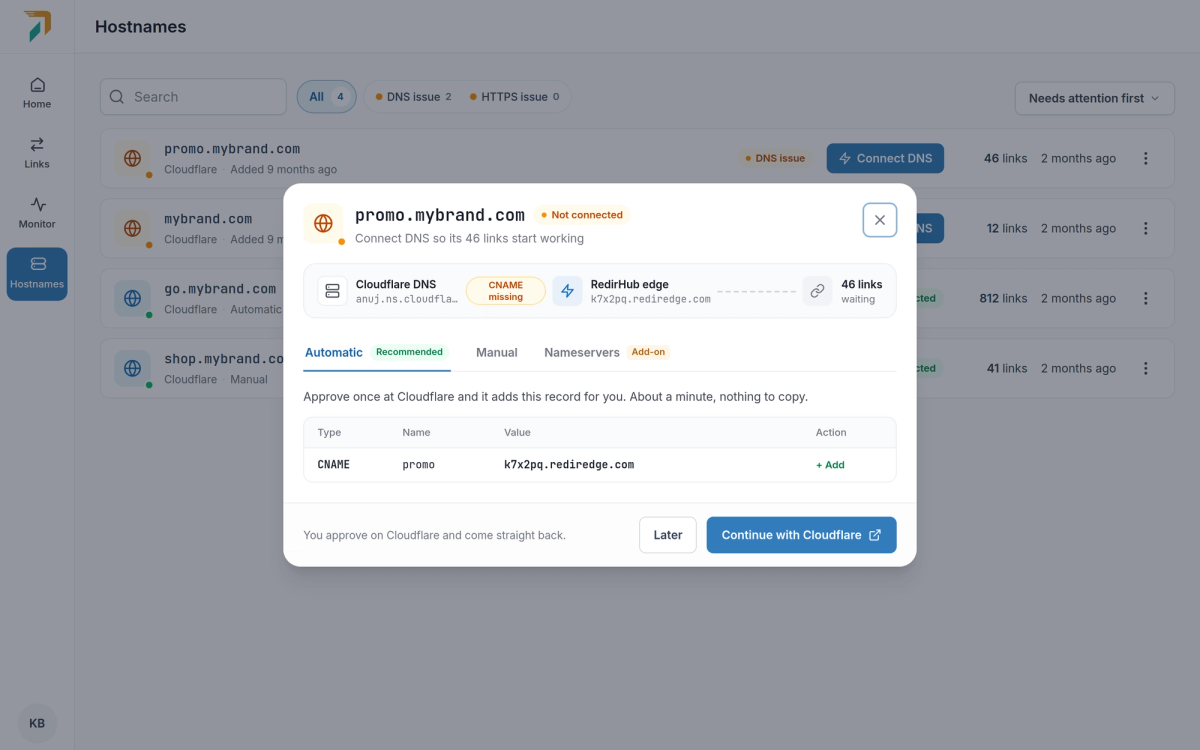
Connect DNS → Automatic
If your DNS is at Cloudflare, choose Continue with Cloudflare. RedirHub shows the exact records first, then Cloudflare asks you to approve them. There are no API keys to create, and the approval is one-time: RedirHub gets no lasting access to your Cloudflare account.
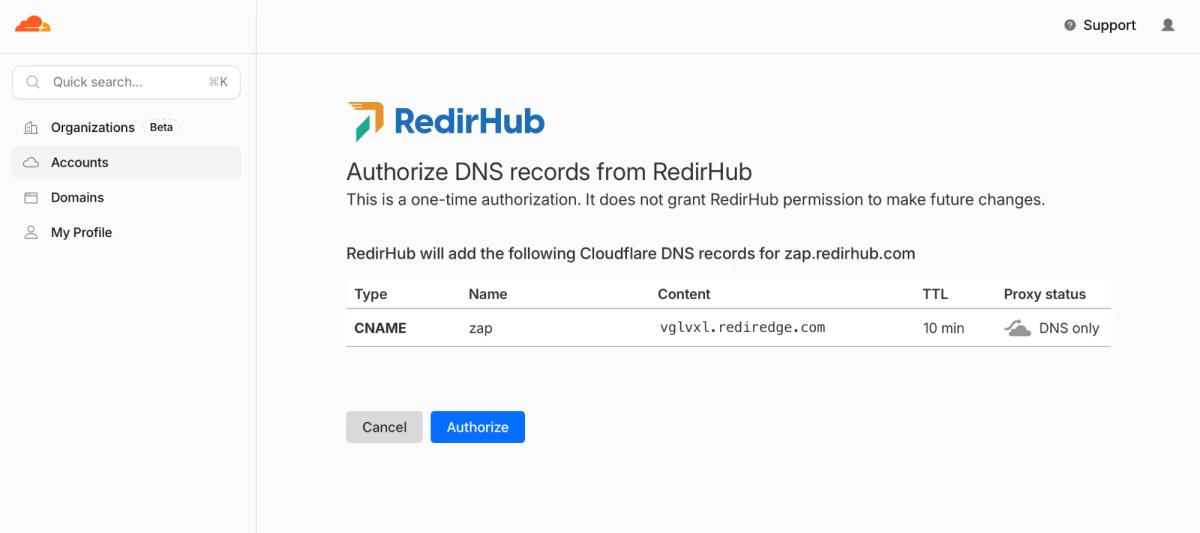
Cloudflare asks you to approve the records once
- Subdomains. One CNAME record, added as DNS only so traffic reaches RedirHub directly.
- Root domains. The A record on the root is pointed at RedirHub and a TXT record is added to confirm the domain is yours. Email (MX) and every other record stay as they are.
- www included. Connecting a root domain also connects its www version, unless you untick it.
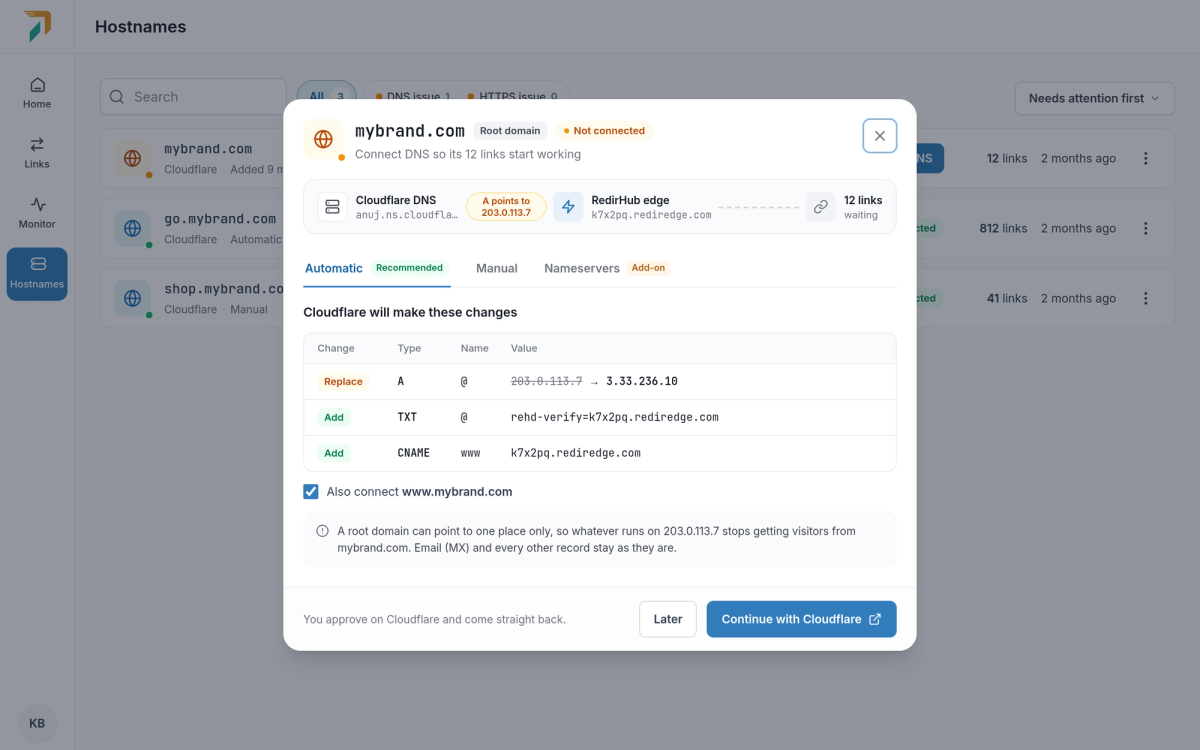
A root domain, with www connected too
Back in RedirHub, we take it from there#
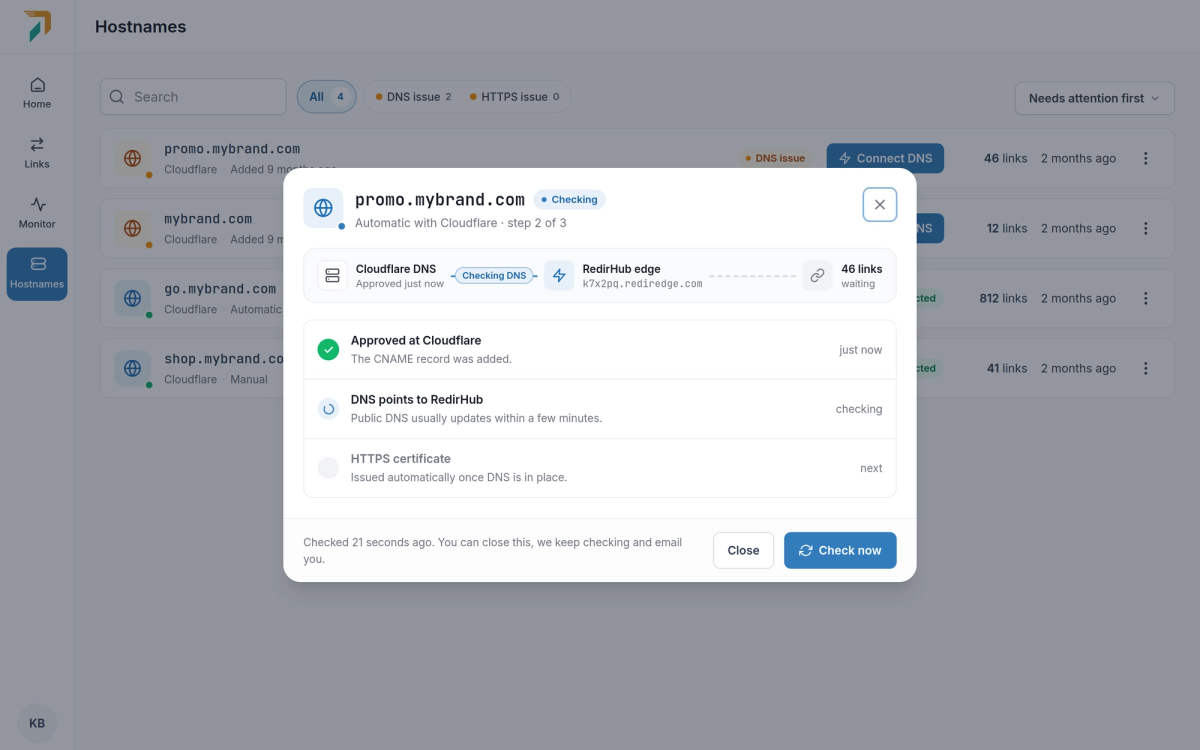
Back from Cloudflare
After you approve, Cloudflare sends you straight back. The window follows each step, from DNS pointing to RedirHub to the HTTPS certificate, and updates by itself. You can close it; we email you when the domain is live.
Manual setup: CNAME or A record#
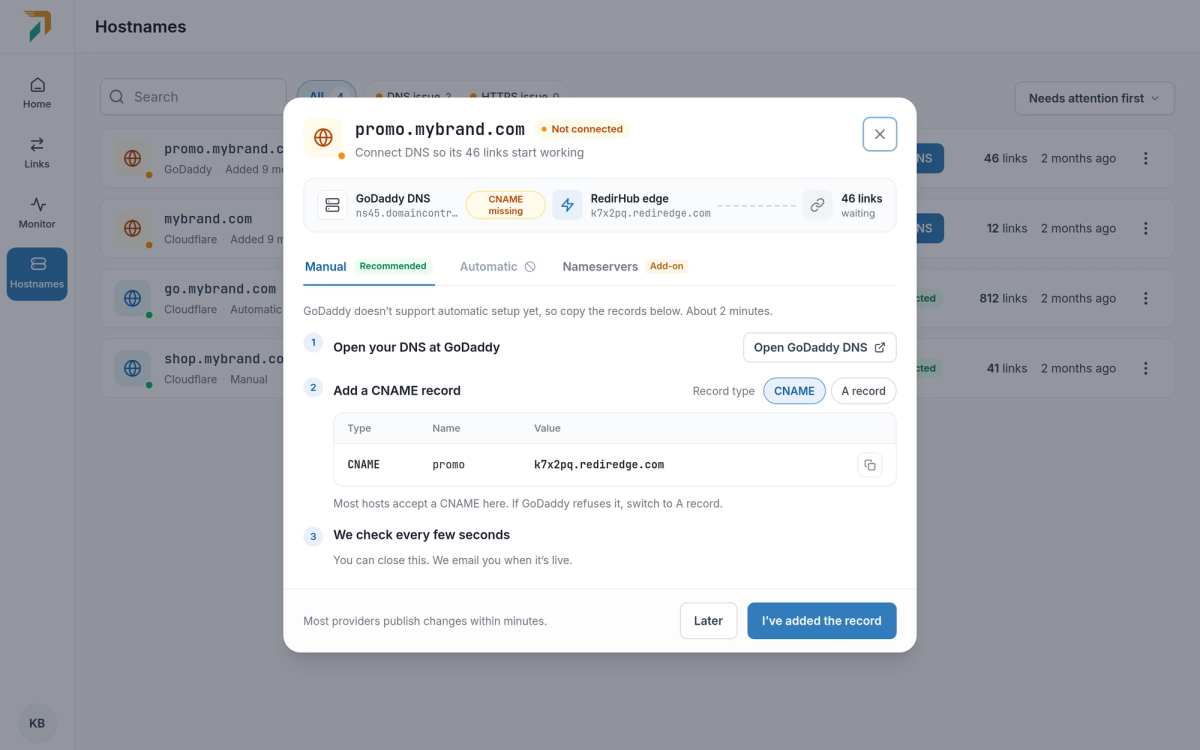
Connect DNS → Manual
For other DNS providers, the Manual tab lists the records to add, with a link to your provider’s DNS settings and a step-by-step guide for the most common providers.
- CNAME by default. It works for most hostnames. If your provider won’t accept it, switch to A record and the records update.
- Root domains. Use an A record, or a CNAME on
@where your provider supports it. Either comes with a TXT record so we can confirm the domain is yours. - Checked as you go. We check every few seconds and tell you which record is still missing.
Automatic setup works with Cloudflare today. More DNS providers that support Domain Connect will follow.
October 1, 2026
Change many links at once
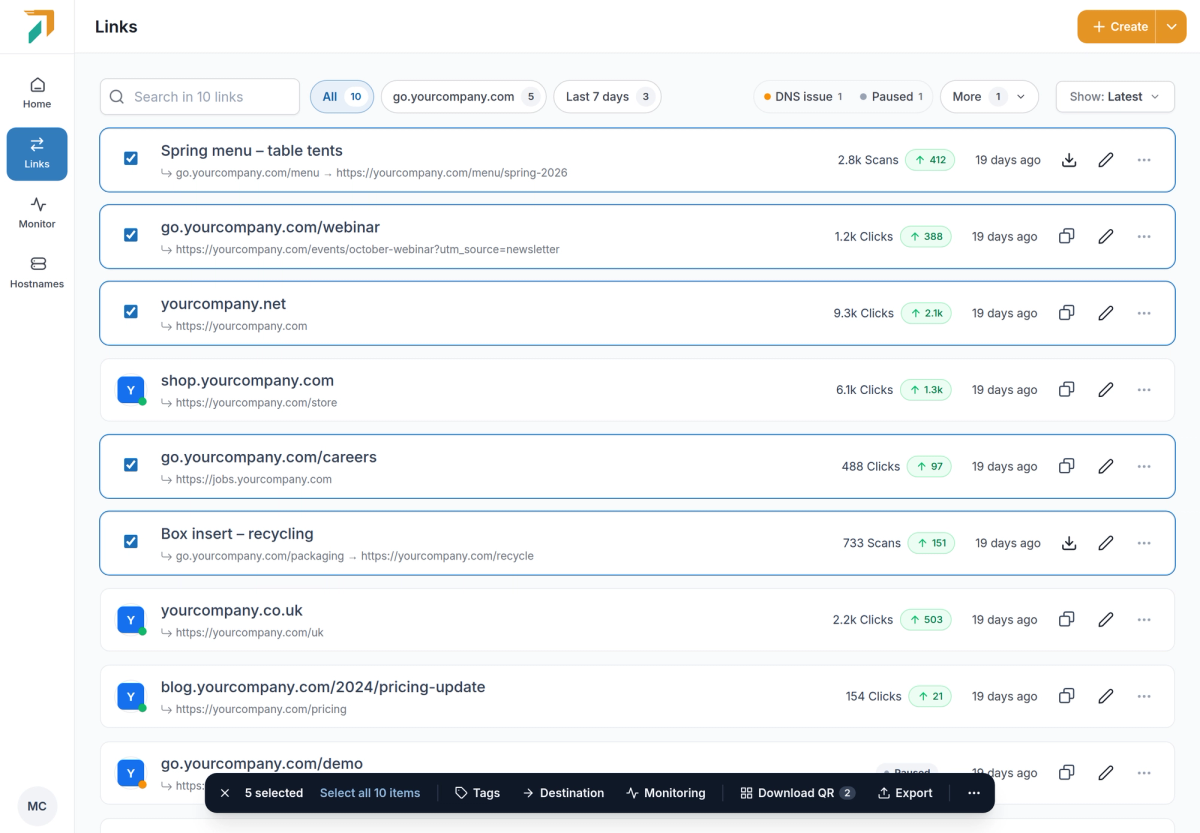
Links → tick the links you want to change
Select links in the Links list, or all links that match your filters, and a bar opens at the bottom of the page. Each action opens a small panel that shows what will happen before anything changes.
Rewrite destinations, with a preview#
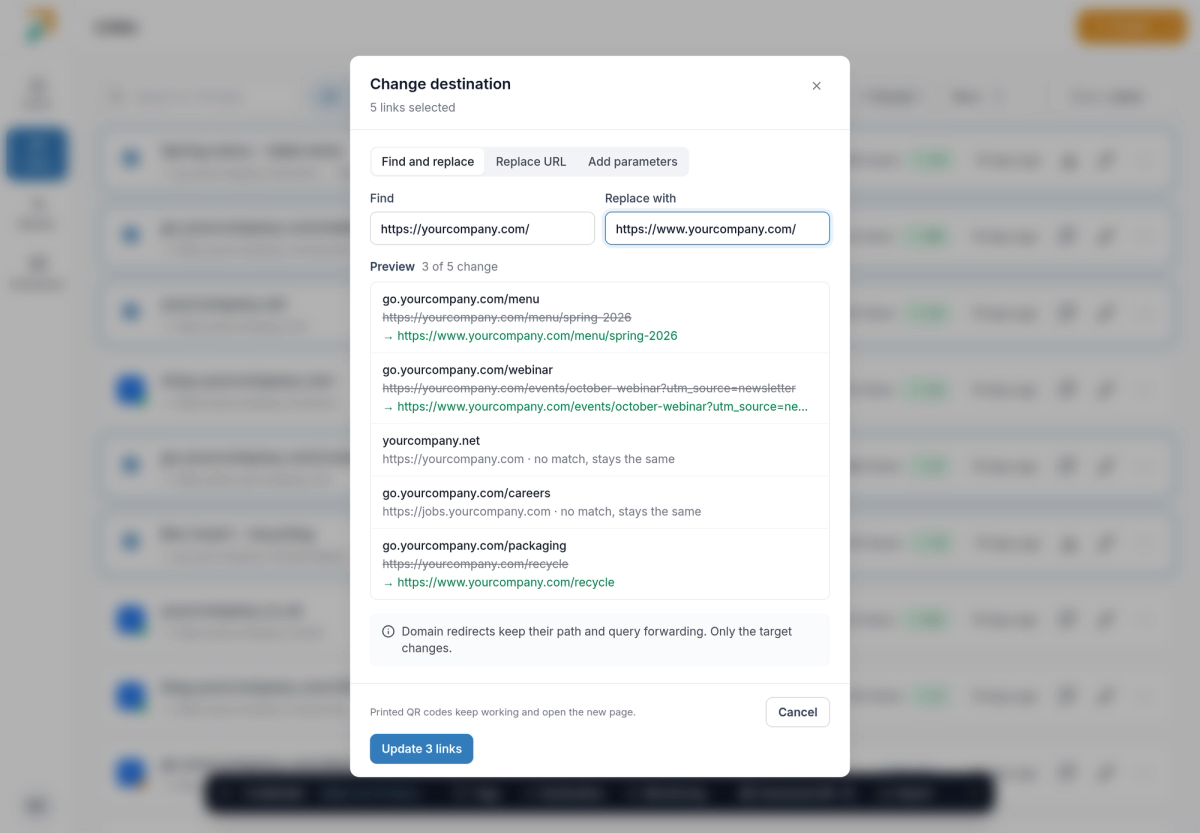
Bulk bar → Destination
- Three ways to change them. Find and replace part of the URL, replace the whole URL, or add parameters such as UTM tags.
- See it first. The preview shows each link’s old and new destination, and which links have no match and stay the same.
- Safe for print. Printed QR codes keep working and open the new page. Domain redirects keep their path and query forwarding; only the target changes.
More from the same bar#
- Tags. See which tags the selected links share, add or remove a tag on all of them, or create a new one.
- Destination monitoring. Turn monitoring on or off for every selected link. Monitoring is part of Pro; turning it off works on every plan.
- Download QR codes. Get the selected QR codes as PNGs, SVGs or a print-ready PDF with one code per page.
- Pause, resume and delete. Under More. Pausing can be undone, and deleting shows how many of the links still get visits first.
Export to CSV or Excel#
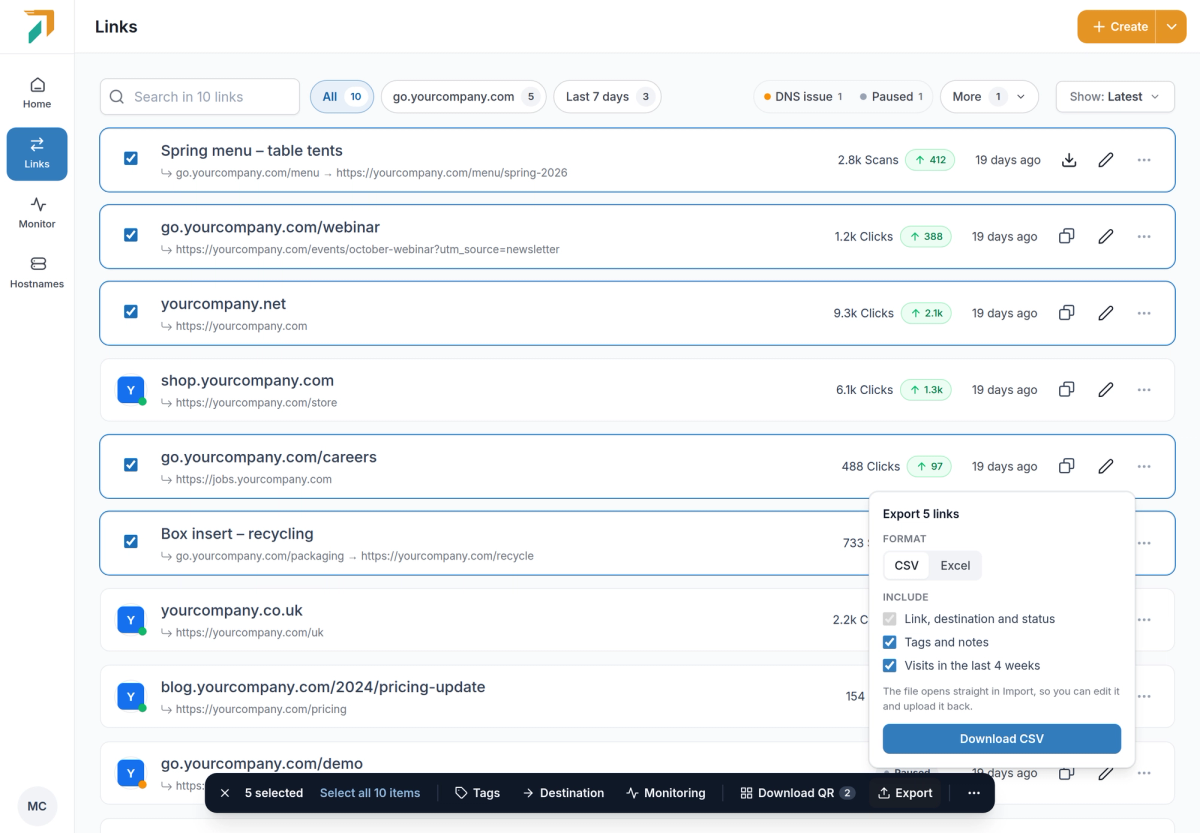
Bulk bar → Export
Download the selected links as a CSV or an Excel file, with their tags and notes and their visits in the last 4 weeks if you want them. The file opens straight in Import, so you can edit it in a spreadsheet and upload it back.
October 1, 2026
One Links page for branded links, QR codes and redirects
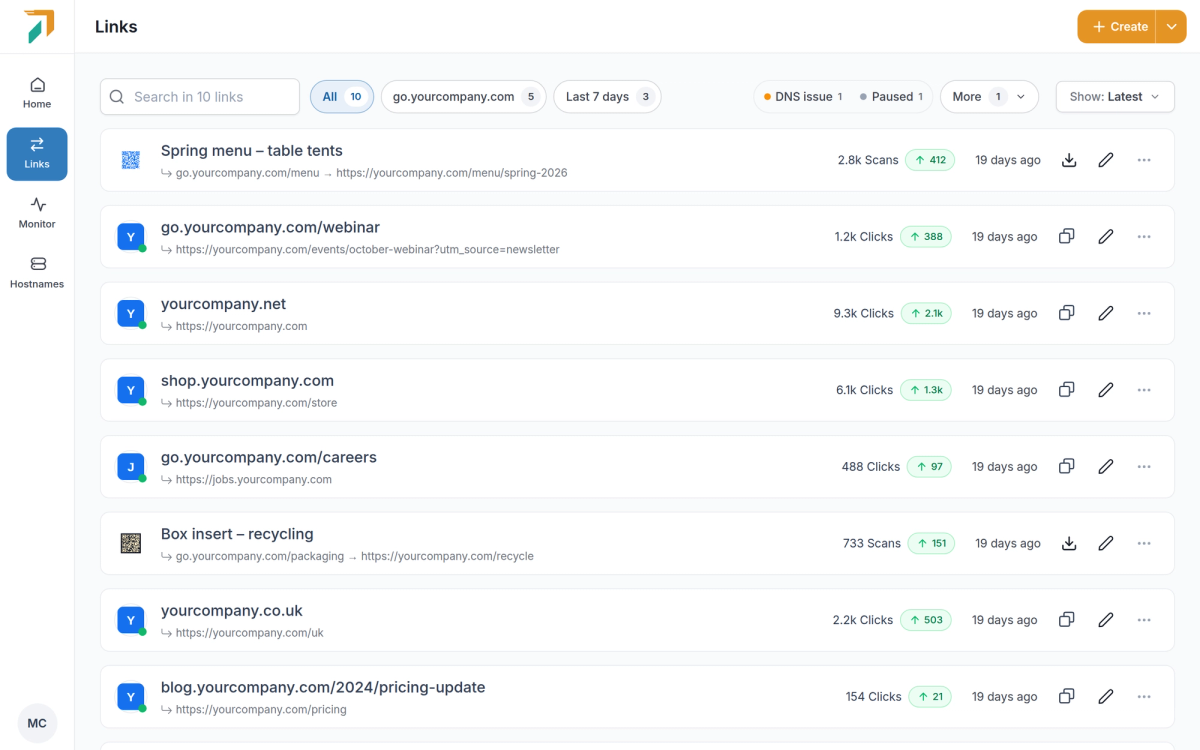
Redirects and Short URLs used to be separate pages. They are now one Links page in the sidebar, where everything you create is listed, searched and managed together. Old Redirects and Short URL bookmarks open Links.
Everything in one list#
- Every kind of link. Branded links, dynamic QR codes, domain redirects and migrations sit side by side, each with its clicks (or scans) and this week’s change.
- Quick filters. One click narrows the list to your busiest domain, links created in the last 7 days, links with a DNS issue, paused links or links with no clicks in 4 weeks. Pin the filters you use most so they stay on the bar.
- Filter by type. Show only branded links, QR codes, redirects or migrations when you need to.
Start from what you want to do#
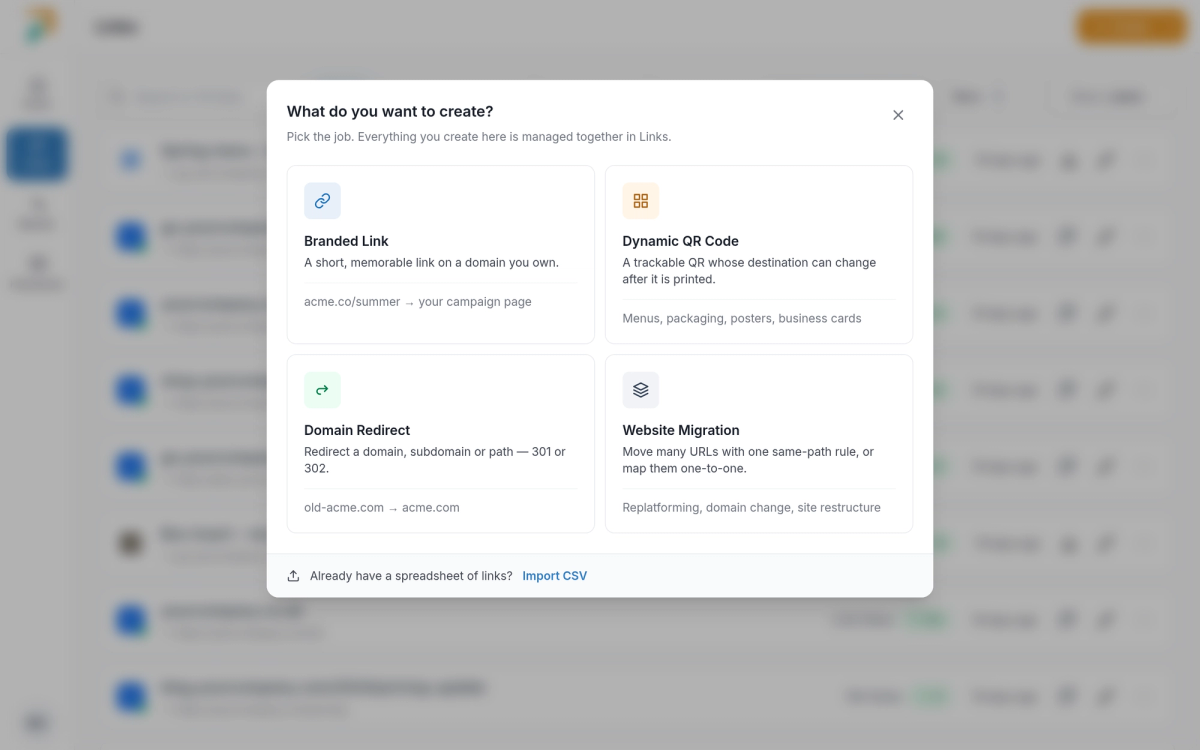
Links → Create
Create asks what you are making and opens a form built for it:
- Branded Link. A short, memorable link on a domain you own. The alias is checked as you type, so you know it’s free before you save.
- Dynamic QR Code. A trackable QR code whose destination can change after it is printed, with a live preview while you style it.
- Domain Redirect. Send a domain, subdomain or path somewhere else with a 301 or 302.
- Website Migration. Move many URLs with one same-path rule, or map them one to one by pasting rows, adding them by hand or uploading a CSV.
QR codes that match your brand#
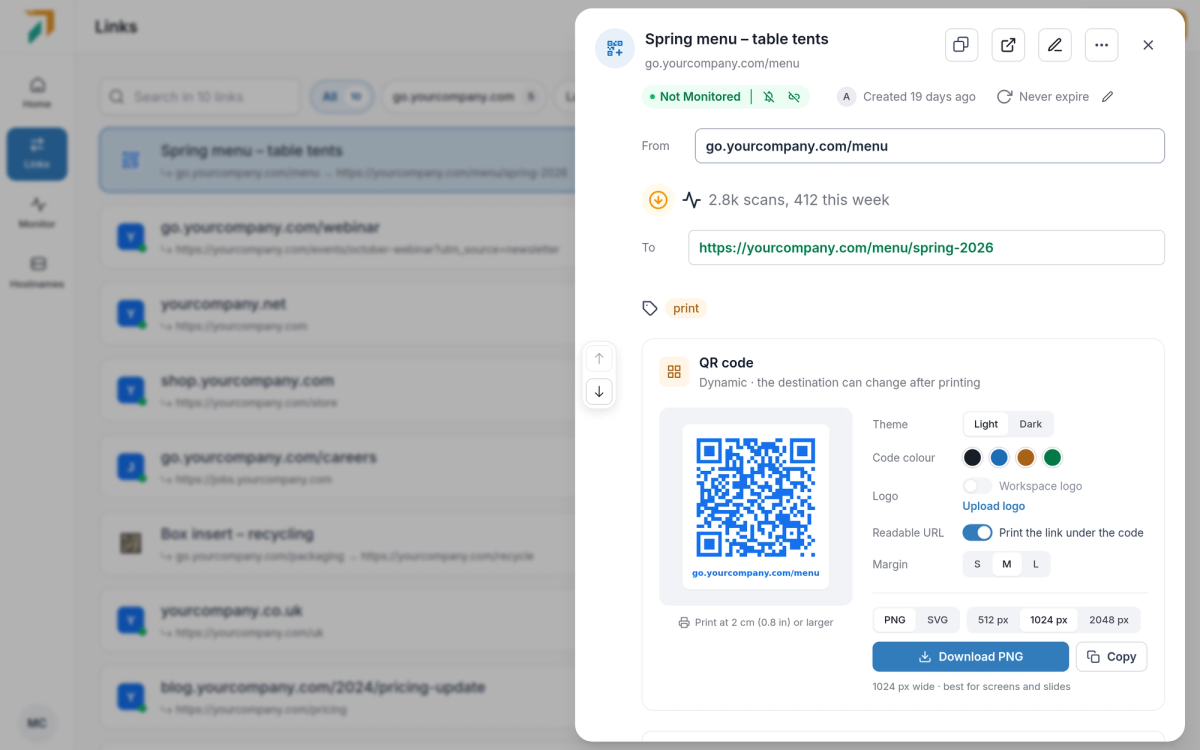
Links → click a QR code to open its details
- Style it. Pick a light or dark theme, the code colour and the margin, and print the readable link under the code.
- Your logo in the centre. Upload your workspace logo once (PNG, JPG, GIF or WebP, up to 5 MB) and turn it on for any QR code.
- Ready to print. Download a PNG at 512, 1024 or 2048 px, or an SVG for print. The code you download is the same one the API and MCP return.
- Change where it goes. Edit the destination any time. The printed code stays the same and opens the new page.
September 30, 2026
MCP 1.1: create links by intent, preview bulk changes, get QR codes
The MCP server at https://mcp.redirhub.com is now version 1.1. It speaks the same language as the new Links page, so your AI agent can do what you do in the dashboard, with the same plan limits.
Create by intent#
create-branded-link,create-qr-codeandcreate-redirectmatch the four create flows in the dashboard; website migrations go throughbulk-import.- Read tools for links, hostnames, the workspace, its members and your account:
list-links,get-link,count-linksand more.
Bulk changes with a dry run#
bulk-update-links and bulk-delete-links first return what they would change. They only apply when called again with the confirmation token from that preview, so an agent can’t rewrite hundreds of links by accident. Bulk updates need a filter, or an explicit choice of all links.
QR codes and history#
get-qr-codereturns the QR code as a PNG, identical to the one you download from the dashboard, style and logo included.get-link-historylists who changed a link and how, on Pro.
Shorter tool names#
Tool names drop the “-tool” suffix, for example get-stats instead of get-stats-tool. The old names keep working, so existing agents need no changes.
September 30, 2026
See who changed a link, and up to 6 months of its traffic
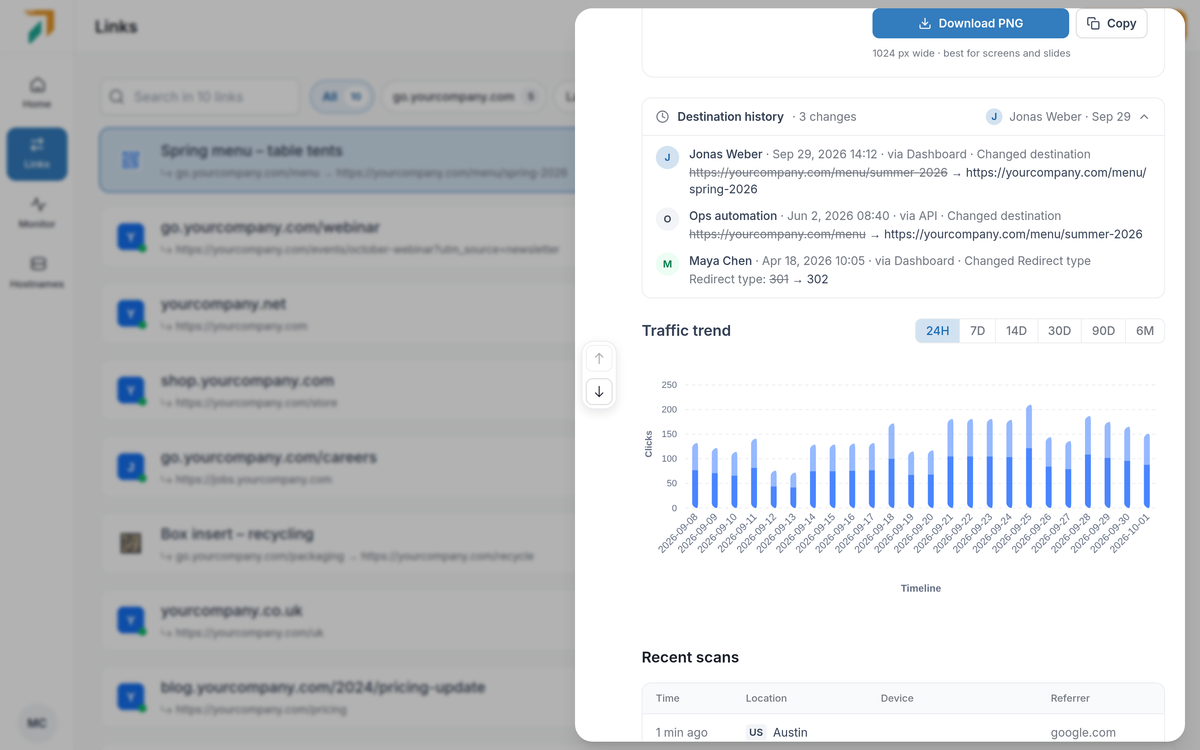
Links → open a link → Destination history
When a link suddenly goes somewhere new, the first question is who changed it. Open any link in Links and the answer is right there, next to how the link has been doing.
Destination history#
- Every change, newest first. Who made it, when, and what changed: the old value crossed out next to the new one, for the destination and every other setting.
- Where it came from. Each change says whether it was made in the dashboard, through the API or MCP, by a CSV import or by Auto-redirect, so automated edits are easy to tell apart.
- Part of Pro. Changes are recorded on every plan. On other plans the link shows how many changes it has, and upgrading to Pro shows them in full.
Longer traffic trends#
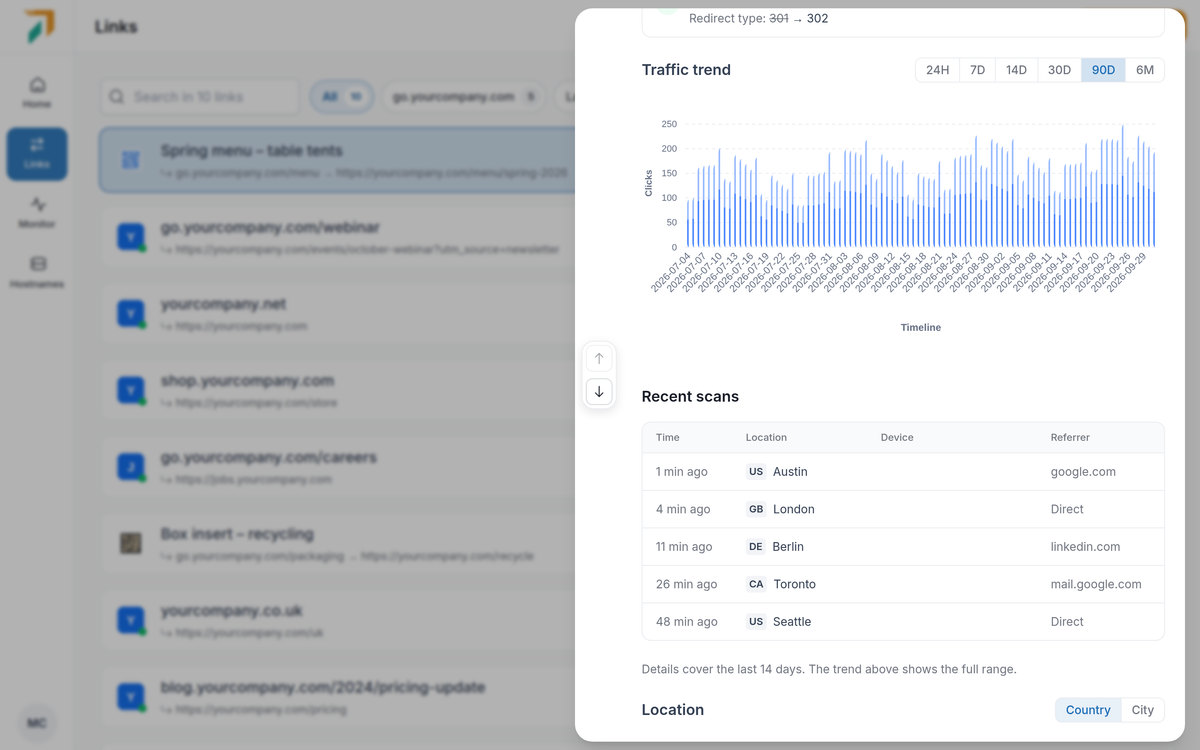
Links → open a link → Traffic trend
- Pick the range. View clicks and unique visitors for the last 24 hours, 7, 14, 30 or 90 days, or 6 months.
- How far back. Paid plans see 90 days of trend; Pro sees 180 days.
- Every report for the last 14 days. Location, technology, domain and referrer breakdowns follow the range you pick, up to the last 14 days. For longer ranges the trend shows the full period and the breakdowns cover the last 14 days. Enterprise keeps detailed reports for longer.
- Recent visits. The latest visits are always listed, even on a quiet link, with their time, location, device and referrer. View all to see more.