



Links in the sidebar is where everything your workspace creates lives: branded links, dynamic QR codes, domain redirects and website migrations. It is available on every plan. Core includes 25 domains and 2,500 managed links ($49/mo), Pro includes 250 domains and 10,000 managed links ($119/mo), and Enterprise is set by contract.
Step 1: Find a link#
Each row shows the link, its destination, its clicks (or scans for QR codes) with this week’s change, and when it was created. To narrow the list:
- Type in the search box.
- Use the quick filters: your busiest domain, Last 7 days, DNS issue, Paused, and more under More, such as links with no clicks in 4 weeks. Any filter can be pinned to the bar.
- Use a Type filter to show one kind of link only, and Show to change the order.
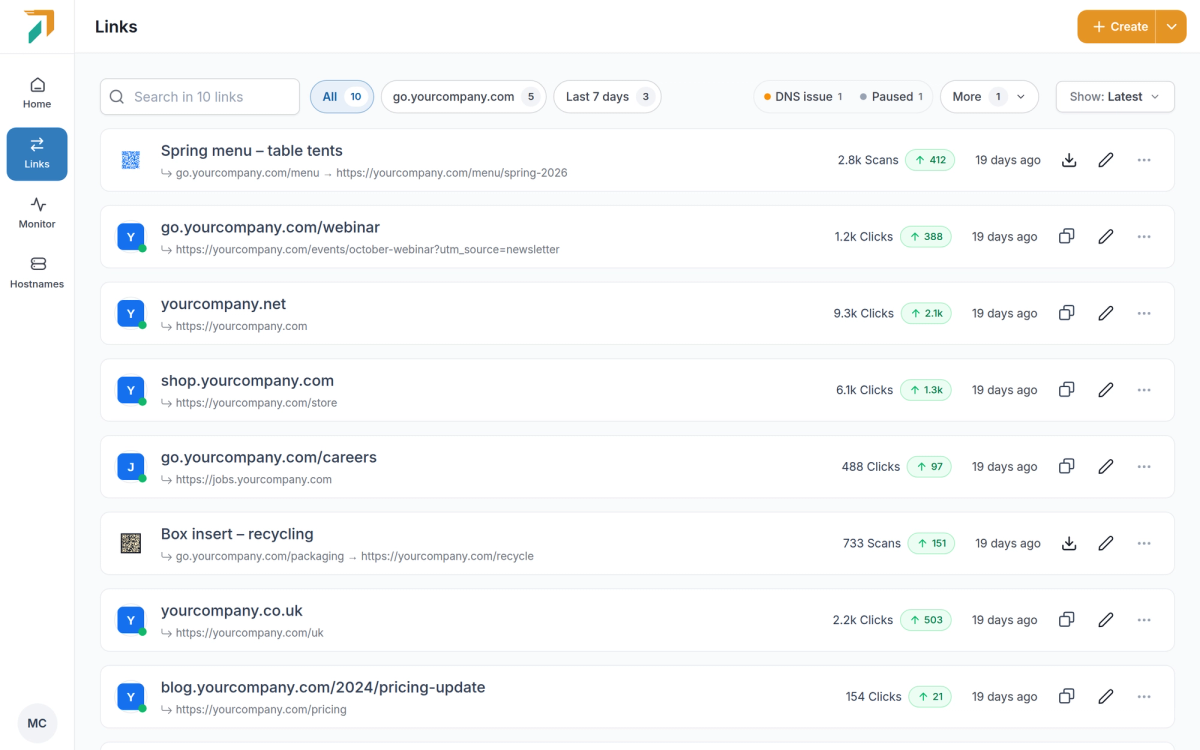
Links lists everything your workspace has created.
Step 2: Create a link#
Click Create and pick the job:
- Branded Link: a short, memorable link on a domain you own.
- Dynamic QR Code: a trackable QR code whose destination can change after it is printed.
- Domain Redirect: redirect a domain, subdomain or path with a 301 or 302.
- Website Migration: move many URLs with one same-path rule, or map them one-to-one by pasting, adding by hand or uploading a CSV.
Already have a spreadsheet of links? Click Import CSV. When you choose a short-link alias, RedirHub checks it is available while you type.
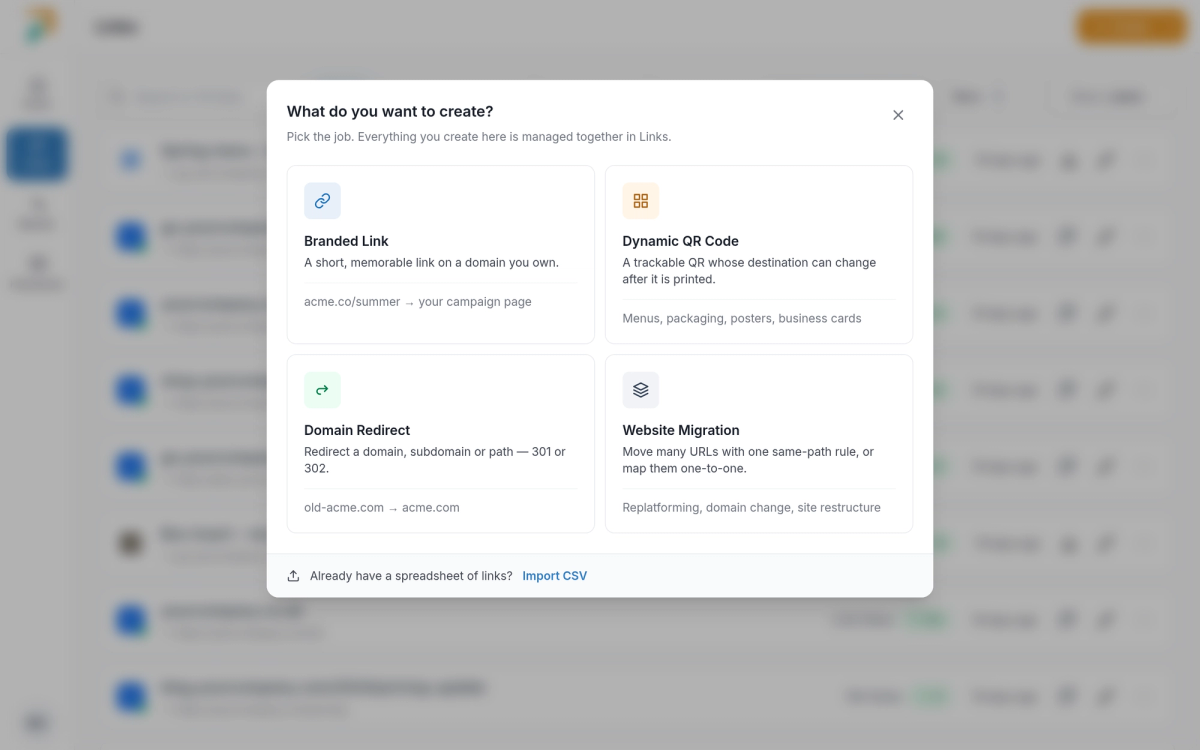
Create starts from what you want to make.
Step 3: Style and download a QR code#
Open a QR code link to see its details. In the QR code section you can set:
- Theme: Light or Dark, and one of four Code colour options.
- Logo: turn on Workspace logo, or Upload logo (PNG, JPG, GIF or WebP, up to 5 MB, set once per workspace).
- Readable URL: print the link under the code. It is on by default.
- Margin: S, M or L.
Then choose PNG (512, 1024 or 2048 px) or SVG and download the file, for example with Download PNG.
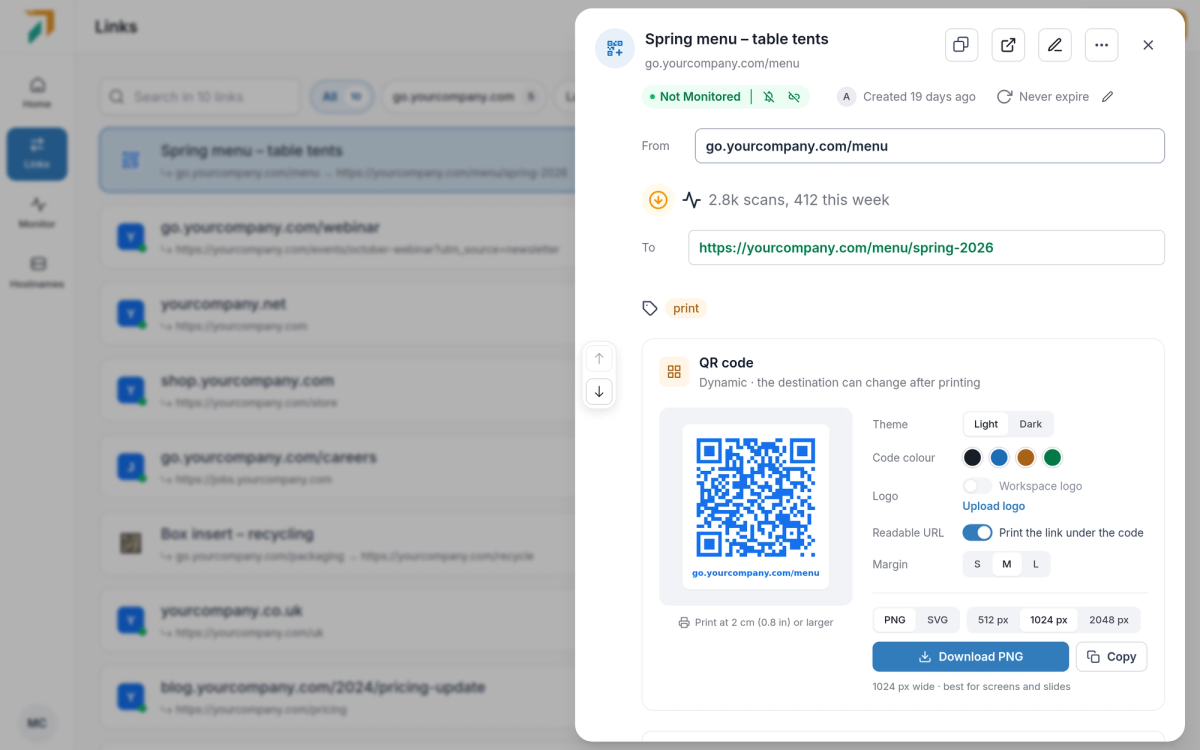
Style a QR code and download it as PNG or SVG.
Good to know#
- You can change the destination of any link later. Printed QR codes keep working.
- The source URL can’t be edited after a link is created. Create a new link instead.
- The API and MCP return the same QR image as the dashboard.