


Connect Your Redirects to Claude, Cursor, or Codex in 5 Minutes

You don't need a paid subscription, a complex API integration, or any MCP experience. Here's the full checklist:
A RedirHub account — a 14-day free trial works. Sign up at redirhub.com.
Your AI client of choice — Claude, ChatGPT, Cursor or Codex. Pick whichever you already use.
2–5 minutes — most of it is signing in.
A workspace — RedirHub creates one for you on signup. You'll pick it when you sign in.
That's it. You won't write any code in this tutorial: you search for RedirHub or paste one address, then sign in. Let's start.
Step 1: Find RedirHub in Your App's Directory#
Claude, ChatGPT and Cursor each have a directory of apps you can connect in a click. Search for RedirHub there first:
- •Claude: open RedirHub in the connectors directory (or Settings → Connectors → Browse connectors and search for RedirHub) and choose Connect.
- •ChatGPT: open the apps directory (Settings → Apps), search for RedirHub and connect it.
- •Cursor: open the Cursor Marketplace, search for RedirHub and install the plugin. It adds the server and a website-migration skill that walks the agent through moving a site.
If your app doesn't list RedirHub yet, add it by its address in Step 2. Nothing else in this guide changes.
Step 2: Or Add It by Address#
The server address is:
https://mcp.redirhub.com
There's no API token to copy: your app signs you in to RedirHub in Step 3.
Claude (claude.ai and Claude Desktop)#
Only needed when your organization has turned off the directory: open Settings → Connectors → Add custom connector, name it RedirHub and paste https://mcp.redirhub.com.
ChatGPT#
Open Settings → Apps & Connectors and add a custom connector with the same address, if your ChatGPT plan lets you add custom connectors.
Cursor#
Use the one-click install button on the RedirHub MCP page, or add this to ~/.cursor/mcp.json (all projects) or .cursor/mcp.json (one project):
{
  "mcpServers": {
    "redirhub": {
      "url": "https://mcp.redirhub.com"
    }
  }
}
Codex and other clients#
Add a remote MCP server (Streamable HTTP) with the address https://mcp.redirhub.com. Clients that support MCP sign-in open RedirHub for you; see your client's MCP documentation for where its server list lives.
Step 3: Sign In and Choose What the Agent Can Do#
The first time your app uses the connection, it opens RedirHub:
- Sign in to RedirHub (or switch account).
- Pick the workspace the agent works in. Each connection works in one workspace.
- Choose what it may do, then select Allow access.
The permissions you can grant:
- •See your links, domains and click stats (always included)
- •Create and edit links
- •Delete links
- •Add and change domains
- •Manage members and workspace settings
The agent only sees the tools those permissions cover. You can disconnect it at any time under Account → AI assistants in RedirHub; the links it made stay.
Scripts and clients that can't sign in: create a workspace API token under Settings → API Tokens in the dashboard and send it as Authorization: Bearer YOUR_API_TOKEN. Keep it private: anyone with it can manage that workspace's links.
Step 4: Your First AI-Powered Redirect#
Your client is connected. Let's do something real — skip the dashboard entirely and let your AI agent handle it.
Create a 301 Redirect via Chat#
Open your AI client and type:
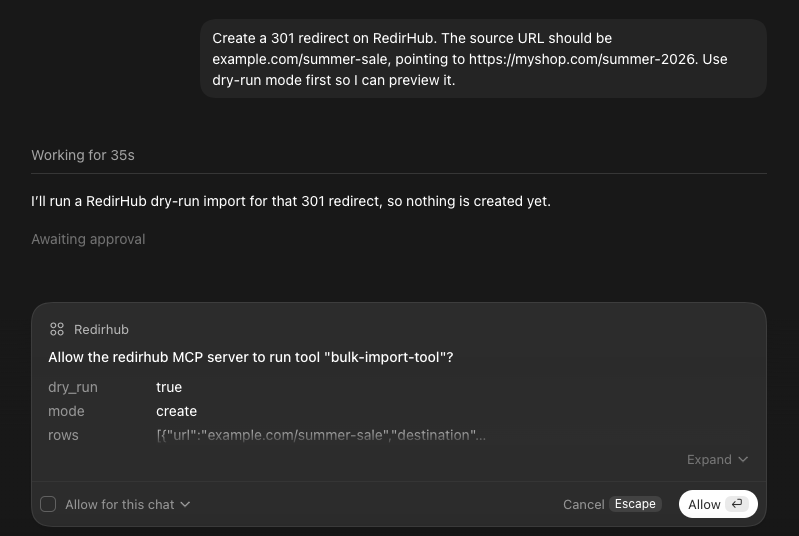
"Create a 301 redirect on RedirHub from myshop.com/summer-sale to https://myshop.com/summer-2026."
Your agent will:
- Call the create-redirect tool (your app may ask you to approve the call first)
- Show you what was created — the source, destination, redirect type and the workspace it lives in
- Change or pause it the same way when you ask: "make it a 302" or "pause that redirect"
Same result as filling out the dashboard form, without leaving your chat window. Bulk changes work differently: they always show a preview first and only apply after you confirm.
List All Your Short Links in One Message#
Now try:
"List all my short links in my active RedirHub workspace."
Your agent calls the list-links tool and returns them in a structured format — domain, path, destination URL and status. No filtering dropdowns, no pagination clicking. Just one prompt.
This is the mental-model shift: you're not filling out forms anymore. You're having a conversation with your infrastructure. Your AI agent translates your intent into the right MCP tools.
What You Can Do Next: 5 Real Prompts to Try#
Here are five prompts that go beyond the basics. Copy-paste any of them into your connected AI client.
1. Bulk import from a CSV: "I have a CSV at ~/redirects.csv with columns 'from' and 'to'. Import all of them into RedirHub as 301 redirects. Use dry-run first."
2. Find unused links: "Which of my links had no clicks in the last four weeks? List them so I can decide which to pause."
3. UTM parameter sweep: "Add utm_source=newsletter and utm_medium=email to every link on go.myshop.com. Preview first."
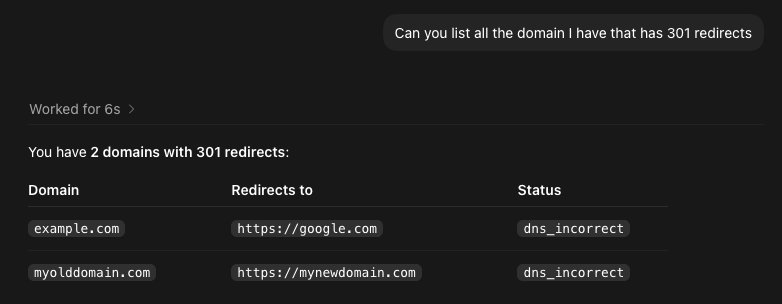
4. Workspace audit: "Show me a summary of my workspace: total links, domains, any domain whose DNS isn't pointing to RedirHub, and links with no clicks in the last four weeks."
5. Domain migration prep: "I'm migrating from oldsite.com to newsite.com. Generate a redirect map — every /path on oldsite should 301 to the same /path on newsite. Show me the list before creating anything."
Each of these would take 15–45 minutes manually. With MCP, each is one prompt and a confirmation. You can manage redirects at a speed that wasn't possible before.
Troubleshooting: Common Setup Issues#
"I don't see RedirHub's tools"
Check 1: Did the sign-in finish? Open Account → AI assistants in RedirHub: the connection should be listed there. If it isn't, remove the connector in your app and add it again.
Check 2: Did you grant the permission? The agent only sees the tools for the permissions you allowed. To grant more, disconnect it under Account → AI assistants and connect again.
Check 3: Can you reach the server? This should return RedirHub's server details:
curl https://mcp.redirhub.com
If it does, the problem is in the client's setup. If it doesn't, a network or proxy rule is blocking the address.
"The agent is working in the wrong workspace"
Each connection works in the one workspace you picked at sign-in. Disconnect it under Account → AI assistants and connect again, picking the other workspace.
"My API token was accidentally committed to a public repo"
Revoke it immediately from Settings → API Tokens in your RedirHub dashboard. Generate a new one. Consider storing the token in an environment variable instead of hardcoding it — most MCP clients support ${ENV_VAR} syntax in config files.
"Which plan do I need for MCP?"
All of them. RedirHub's MCP server is available on every plan, and the agent works within the same plan limits and features as the dashboard. No upgrade required to connect your AI agent.
Start Making 5x Faster Redirects with RedirHub
Get redirects in under 100 ms – with automatic HTTPS, analytics, and zero configuration.
Get Started FreeFrequently asked questions
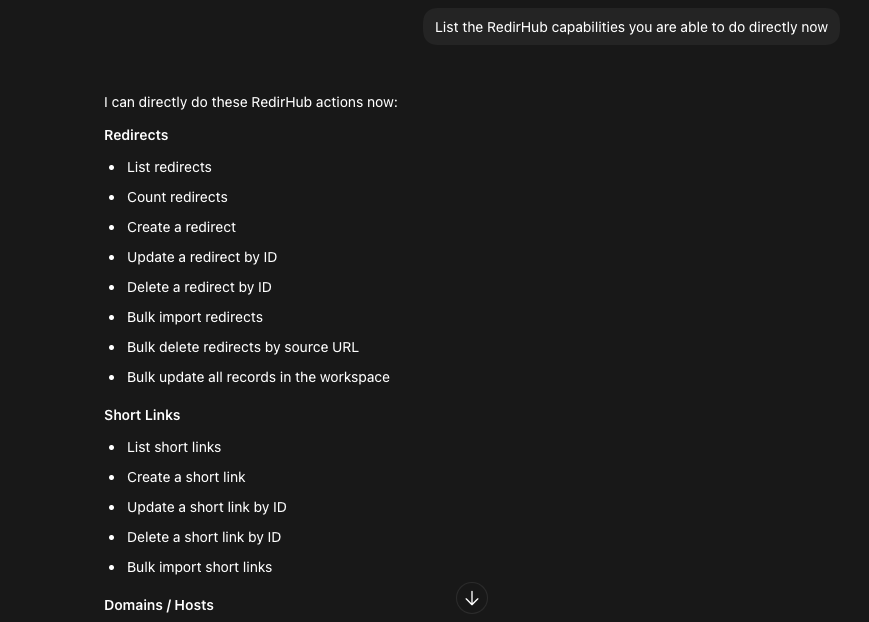
RedirHub's MCP server is a Model Context Protocol endpoint that lets AI agents — like Claude, Cursor, and Codex — manage URL redirects directly. It exposes 17 tools and 15 resources, covering everything from creating single redirects to bulk-importing thousands of records, all from your chat interface or terminal.
RedirHub's MCP server is compatible with any MCP client that supports HTTP transport. Tested and verified: Claude Desktop, Cursor, OpenAI Codex (VS Code extension), and Continue.dev. The config pattern is the same across clients — just the endpoint URL and your API token.
No add-on is required. MCP access is included on every RedirHub plan — Core, Pro, and Enterprise — with the full set of 17 tools, 15 resources, bulk operations, and dry-run safety. You can try it during the 14-day free trial. Higher plans add more capacity and team features.
The REST API requires you to write HTTP requests, handle authentication, parse JSON responses, and build your own tool integrations. MCP lets your AI agent handle all of that — you just describe what you want in natural language, and the agent picks the right tools. Same capabilities, zero code.
Yes. Every bulk operation — import, update, delete — supports dry-run mode. Your agent can preview exactly what will change before anything goes live. This is the default behavior we recommend: always dry-run first, then confirm.
Yes. Each workspace has its own API token. If you work across multiple RedirHub workspaces (e.g., one for a client project, one for internal tools), add each as a separate MCP server entry in your config with a unique name — like "redirhub-client" and "redirhub-internal." Your AI agent can then access both.
Revoke the API token from Settings → API Tokens in your RedirHub dashboard. This instantly cuts off MCP access for any client using that token. You can generate a new token at any time. We recommend rotating tokens quarterly as a security practice.
All MCP communication uses HTTPS (TLS 1.3). Your API token is sent as a Bearer header over an encrypted connection. The MCP server endpoint runs on the same global edge infrastructure as the RedirHub API, with 99.99% uptime.

Linh handles the backend systems that keep RedirHub fast and reliable. Her work revolves around performance, scalability, and making sure redirects happen instantly, no matter where users are. She also writes about redirect performance and link tracking. She likes solving complex problems quietly.