



To redirect a domain whose DNS is at Amazon Route 53, create the redirect in RedirHub, then at Amazon Route 53 point the root domain to RedirHub with an A record, add the TXT verification record, and point www with a CNAME. RedirHub detects the change and issues the SSL certificate automatically.
Route 53 only answers DNS queries. Redirecting a domain on AWS normally means an S3 bucket for the redirect and CloudFront for HTTPS. With RedirHub you only add a few DNS records in Route 53; RedirHub serves the redirect and manages the SSL certificate.
Before you start#
- The DNS for your domain is managed at Amazon Route 53. If your domain uses another provider's nameservers, make the changes there instead (how to check).
- A RedirHub account. The 14-day free trial is enough for this guide.
- About 10 minutes, plus time for DNS to update.
Step 1: Create the redirect in RedirHub#
In the RedirHub dashboard, open Redirects, click New redirect and choose Single import. Enter your domain, for example example.com, and click Next. Then set the destination URL, the Method (301 for a permanent move) and the Forwarded Options, and create the redirect.
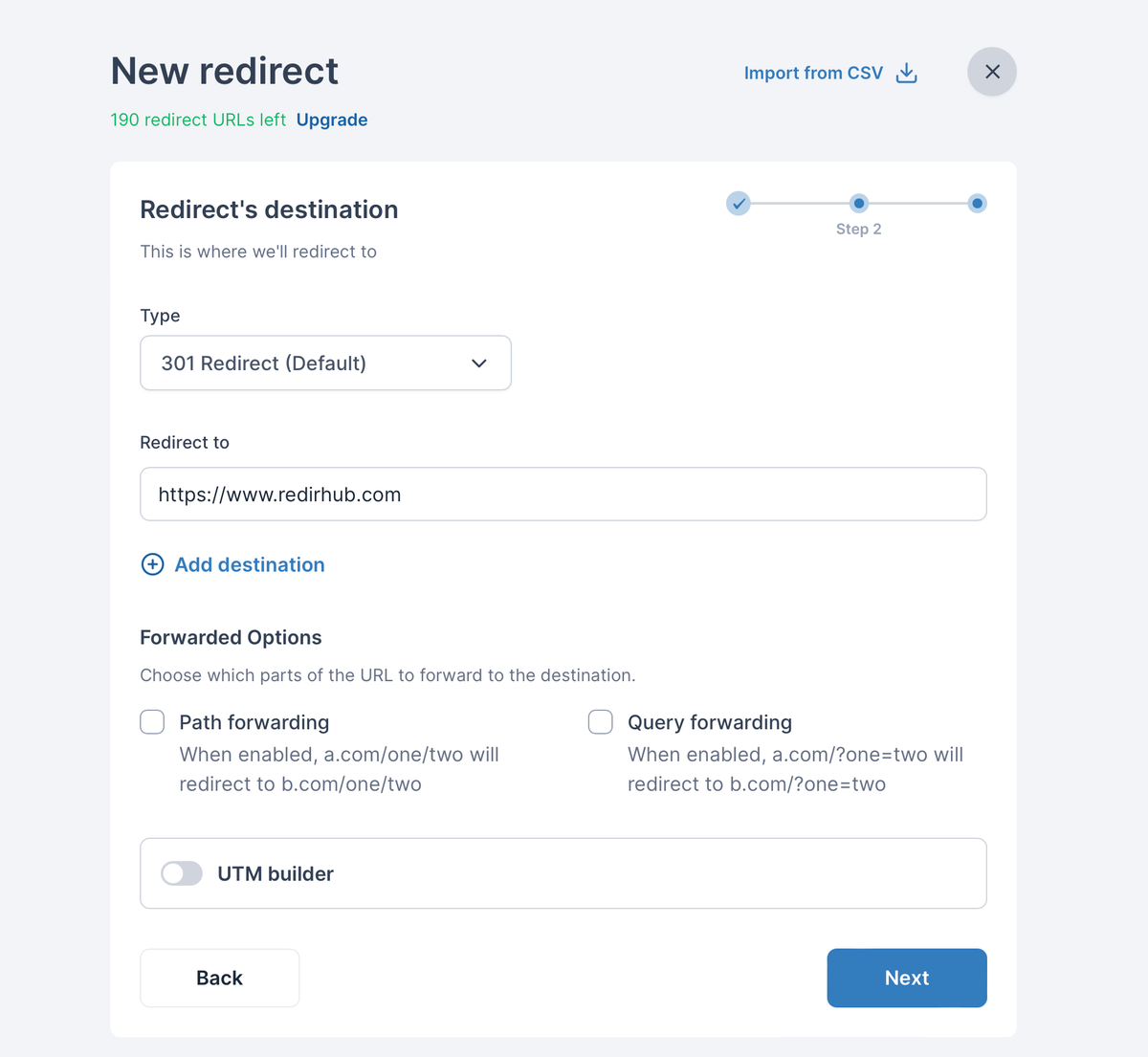
You don't need to add www separately. A redirect for the root domain also covers www, including the same paths, as long as www points to RedirHub in DNS.
Need more detail on these options? See Setting Up URL Redirects and Redirect Methods Explained.
Step 2: Copy the DNS values from RedirHub#
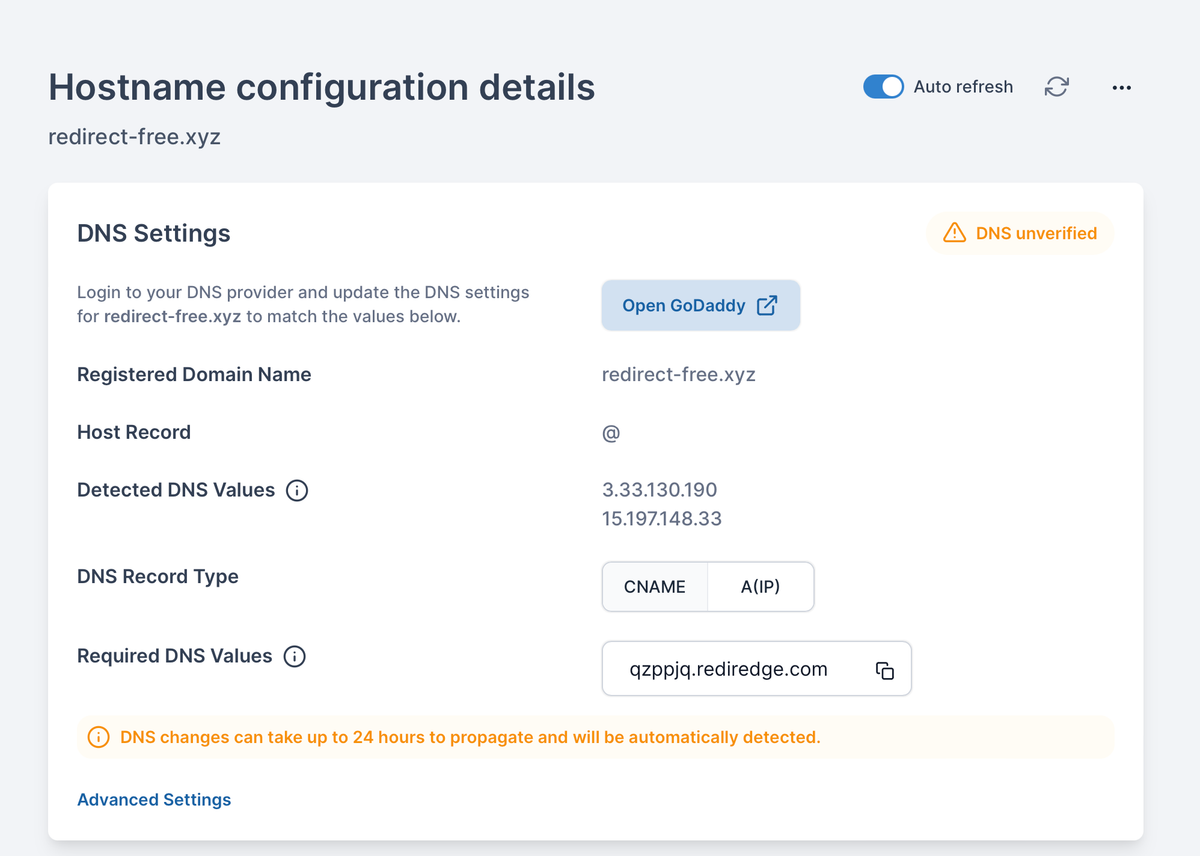
Click View redirects, then Check DNS next to your domain. The DNS Settings panel shows the Host Record, the DNS Record Type and the Required DNS Values. For the root domain, choose A(IP); the Domain Verification panel then shows the TXT record you also need.
| Host | Type | Value |
|---|---|---|
| @ (root domain) | A | 3.33.236.10 |
| @ (root domain) | TXT | Your verification value, e.g. abc123.rediredge.com |
| www | CNAME | Your CNAME target, e.g. abc123.rediredge.com |
Step 3: Update the DNS records at Amazon Route 53#
- Sign in to the AWS console and open Route 53 → Hosted zones.
- Click the hosted zone for your domain.
- Delete existing A, AAAA and CNAME records for the root domain and www. Keep NS, SOA, MX and other TXT records.
- Click Create record. Leave Record name empty, choose A, and enter
3.33.236.10as the value. - Create a TXT record with an empty record name and the verification value in double quotes, for example
"abc123.rediredge.com". If a TXT record for the root already exists (for example SPF), add the value on a new line of that record instead. - Create a CNAME record with record name
wwwand the CNAME value from your dashboard.
For the root domain, leave Record name empty. Only change A, AAAA and CNAME records for the root and www: your email (MX) and other TXT records keep working as before.
Route 53 does not allow a CNAME on the root domain, so use the A record option in RedirHub for the root.
Step 4: Wait for DNS verified and HTTPS#
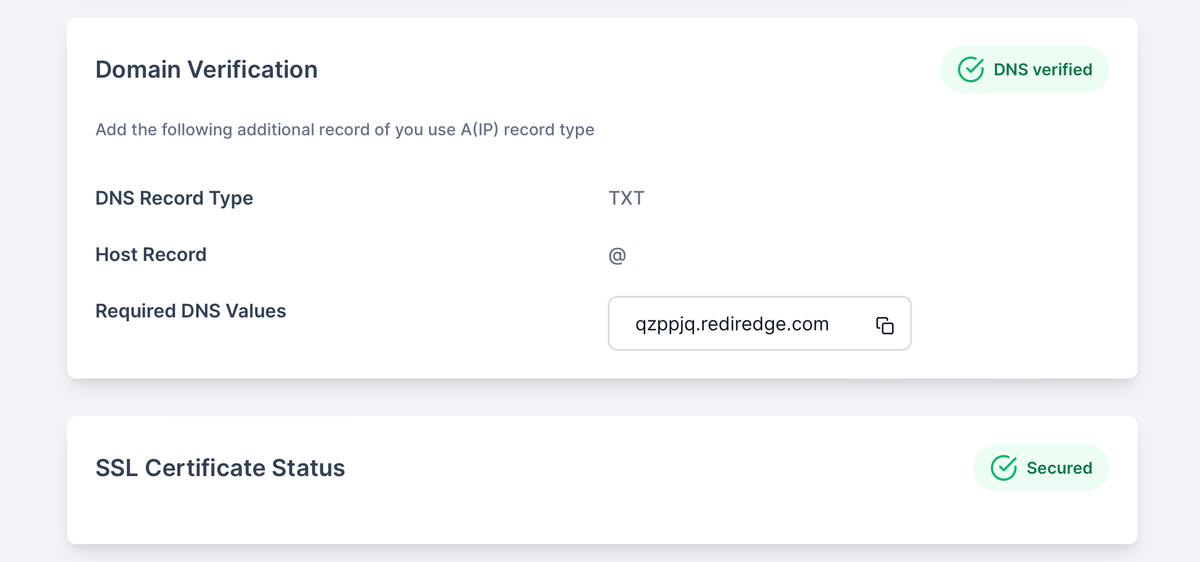
RedirHub checks the records automatically. Changes are often picked up within minutes but can take up to 24 hours, depending on the TTL of the old records. When the domain shows DNS verified, the redirect is live, and the SSL certificate status changes to Secured shortly after.
Step 5: Test the redirect#
Open your domain in a private browser window and check the homepage, a deeper page and the www version, over both http:// and https://. If something doesn't work yet, see Troubleshooting new redirects or how long DNS changes take.